If you have just started selling on Meesho, one of the first things you need to figure out is how to correctly download and print your shipping labels. A wrong print setting can lead to blank labels, wasted paper, or labels that scanners cannot read at the courier pickup point. This guide walks you through the entire process step by step, whether you are using a regular A4 printer or a thermal printer.
What Is a Meesho Shipping Label?
A Meesho shipping label is a PDF document generated by the Meesho seller panel for every order you accept. It contains the customer's shipping address, your pickup address, a barcode used by the courier partner (like Delhivery, Ekart, or Xpress Bees) to track the package, and your Order ID and SKU details. This label must be pasted on the package before handing it over for pickup. Without a correctly printed, scannable label, your package pickup can get delayed or rejected.
Step 1: Download the Label PDF from Meesho Seller Panel
- Log in to your Meesho Supplier Panel.
- Go to the Orders section.
- Select the orders you want to ship (you can select multiple at once for bulk printing).
- Click Print Label or Download Label.
- Meesho will generate a single PDF containing all selected labels, one per page.
If you are processing a large batch, this PDF can contain 50, 100, or even 500+ pages in random order — exactly the kind of file that benefits from sorting before printing.
Step 2: Choose Your Printer Type
There are two common ways sellers print Meesho labels:
Option A: Thermal Printer (Recommended for Regular Sellers)
Thermal printers like Xprinter, TSC, or Zebra print directly onto 4x4 inch thermal label rolls with no ink required. This is the most cost-effective method if you are processing more than 15-20 orders a day.
- Connect your thermal printer and install its official driver.
- Open the downloaded label PDF.
- In the print dialog, set paper size to 4 x 4 inches.
- Set scaling to Actual Size if your PDF is already cropped to 4x4. If it is not cropped, use "Fit to Page" instead, or crop it first using a free tool.
- Print a single test label first to confirm alignment before printing the full batch.
Option B: Regular A4 Printer
If you do not have a thermal printer yet, you can print on A4 paper and cut the labels manually.
- Open the label PDF in any PDF reader.
- Select Fit to Printable Area in your print settings.
- Print on A4 sheets.
- Cut along the label borders using scissors or a paper cutter.
Note: this method wastes a significant amount of paper since Meesho labels only occupy a small portion of the A4 page, leaving the rest blank.
Step 3: Common Printing Problems and How to Fix Them
Problem: Label Prints Blank
This is usually caused by an outdated printer driver, a corrupted PDF, or incorrect paper size selected in the print dialog. Try re-downloading the PDF from Meesho and restarting your printer before printing again.
Problem: Label Is Cut Off or Misaligned
This happens when your printer's paper size setting does not match the actual label size. Double check that you have selected 4x4 inches (or whatever size your printer roll is) rather than a default A4 or Letter size.
Problem: Too Much Wasted Blank Space Around the Label
Meesho labels often include extra margin space around the actual barcode and address block. Printing this as-is on a thermal printer wastes label roll and can even push part of the label off the edge. The fix is to auto-crop the label to its actual content boundary before printing.
Step 4: Sorting Labels Before Printing (Save Hours if You Have Multiple Orders)
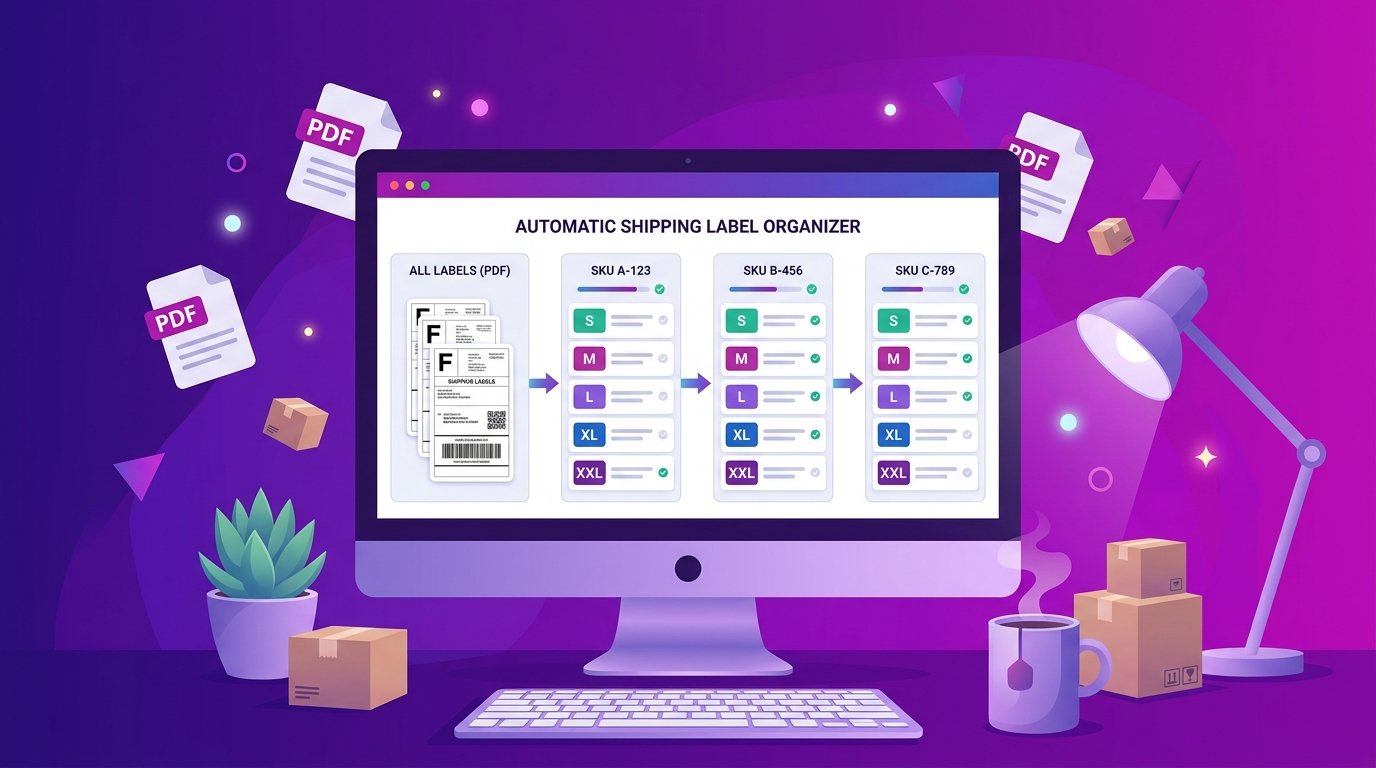
If you are only printing one or two labels, sorting does not matter much. But if you are processing 20, 50, or 100+ orders a day, Meesho gives you labels in random order — not grouped by product or size. This means your packing team has to constantly jump between different products and sizes while packing, which wastes a huge amount of time.
Instead of manually sorting each label by hand, you can use EasyOrderLabel's free Meesho label tool to upload your bulk PDF and instantly get labels automatically sorted by SKU and size, whitespace auto-cropped to the correct 4x4 inch thermal size, and an editable SKU + size summary report you can download as PDF, Excel, or CSV.
This is completely free, requires no signup, and your files are automatically deleted from the server after processing for privacy.
Frequently Asked Questions
Why is my Meesho shipping label printing blank?
This usually happens due to outdated printer drivers, incorrect paper size selected in the print dialog, or a corrupted PDF download. Re-download the label PDF from your Meesho seller panel and make sure your printer's paper size matches the label size before printing.
What size should a Meesho shipping label be?
Meesho shipping labels are designed for 4x4 inch thermal labels. If you are printing on A4 paper, make sure to select Fit to Page in your print settings, or use a free cropping tool to resize it correctly for thermal printers.
Can I print Meesho labels without a thermal printer?
Yes, you can print Meesho labels on a regular A4 inkjet or laser printer and cut them manually. However, this wastes paper and ink, and is slower for sellers processing multiple orders daily. A thermal printer is recommended for sellers doing 20 or more orders per day.
How do I sort multiple Meesho labels by SKU before printing?
You can use a free tool like EasyOrderLabel to upload your bulk label PDF and automatically sort all labels by SKU and size before printing, saving significant packing time compared to manual sorting.
Final Thoughts
Printing Meesho shipping labels correctly is a small step, but it directly affects how smoothly your daily packing and dispatch process runs. Once you are comfortable with the basic printing process above, the next big time-saver is sorting your labels by SKU before you even start packing — especially once your order volume grows beyond a handful of orders per day.