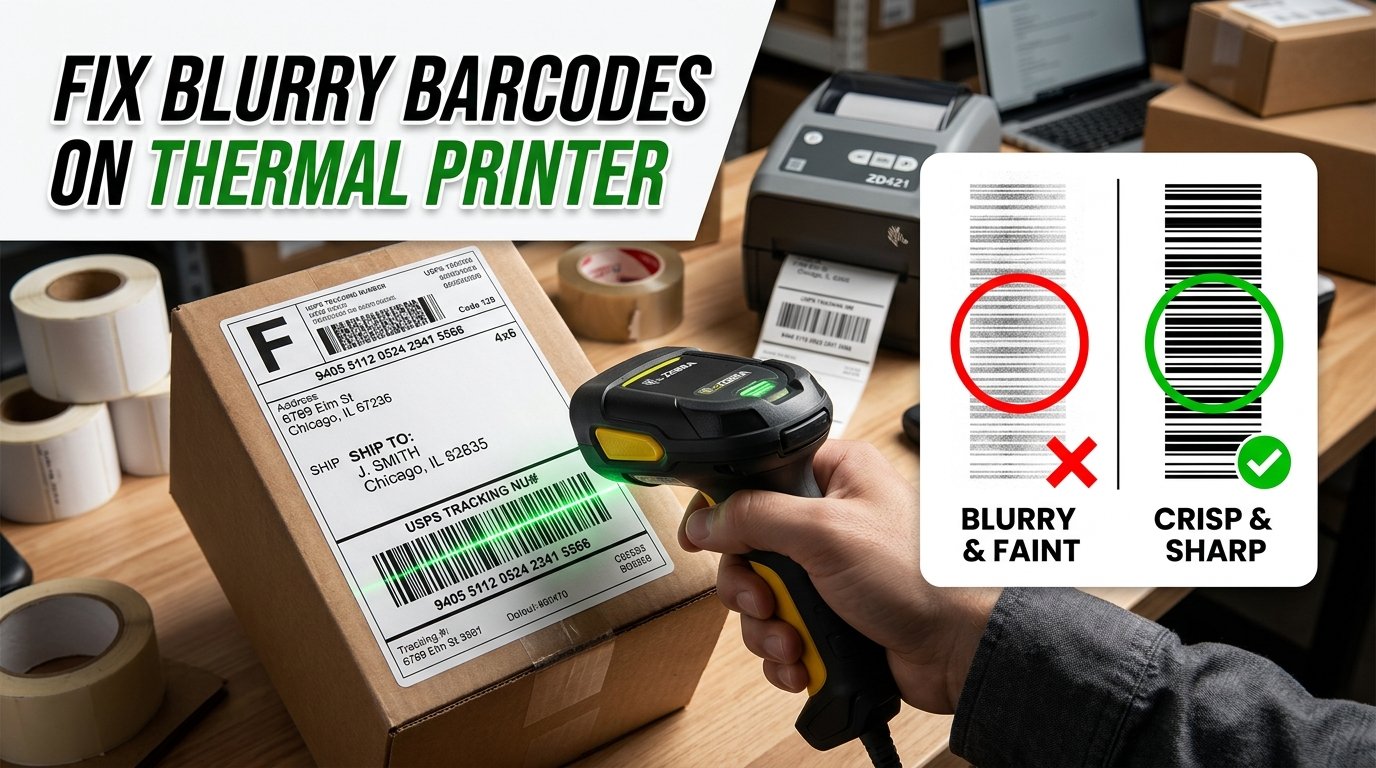
There is nothing more frustrating for an e-commerce seller than having a courier pickup agent from Delhivery, Shadowfax, or Ekart reject dozens of packed parcels during evening dispatch because their handheld barcode scanner cannot read the shipping label barcode.
Faint, streaky, or blurry thermal barcodes lead to missed dispatch SLAs, late dispatch penalties, and cancelled orders. Fortunately, in 95% of cases, barcode scanning failures are caused by incorrect driver settings or printer scaling rather than hardware failure.
Top 8 Ways to Fix Faint or Blurry Thermal Barcodes
1. Increase Darkness / Heat Density in Windows Settings
Direct thermal printers print using heat elements. By default, many Windows drivers set darkness to 8 (out of 15). For deep, pitch-black barcode lines, increase darkness:
- Go to Settings > Devices > Printers & Scanners.
- Click your thermal printer > Printing Preferences > Options / Print Quality tab.
- Increase Darkness (or Density) to 12 to 14.
2. Lower the Print Speed (Crucial for Barcode Sharpness)
When printers run at maximum speed (e.g., 6 inches per second), the thermal head doesn't have enough contact time with the heat-sensitive paper, resulting in faded gray lines. Lower the print speed to 3 or 4 inches per second to give the thermal pins enough time to saturate the paper.
3. Clean the Thermal Print Head with Isopropyl Alcohol
Adhesive residue from sticker labels and paper dust accumulates on the ceramic heating elements over time, causing white vertical lines through the barcode. Turn off the printer, take a cotton swab dipped in 99% Isopropyl Alcohol (IPA), and gently wipe along the dark glass line of the print head. Let it dry for 60 seconds before printing.
4. Avoid the "Actual Size" PDF Print Scaling Trap
When printing PDF shipping labels directly from Chrome or Adobe Acrobat, selecting "Actual Size" often pushes edges of barcodes outside the printable boundary or distorts millimeter line ratios. Always choose "Fit to Printable Area" or "Fit to Paper".
5. Pre-Crop Labels Using Vector Tools Instead of Screenshots
Taking screenshots of PDF labels and pasting them into Microsoft Word or Paint rasterizes high-resolution vector barcodes into blurry 72 DPI images. Instead, use EasyOrderLabel to crop your original PDF directly. EasyOrderLabel preserves raw vector geometry, keeping barcodes razor sharp.
6. Calibrate Sensor for Label Gaps
If your printer skips stickers or prints barcodes halfway across label seams, calibrate the transmissive gap sensor. Hold the front feed button for 3 to 5 seconds until the status LED flashes red/purple, then release. The printer will feed 2–3 labels and lock in the exact sticker gap.
7. Inspect Thermal Paper Roll Quality
Cheap or expired thermal rolls turn gray or fade quickly when exposed to sunlight, heat, or moisture. Direct thermal paper should yield deep black impressions with moderate fingernail pressure. If scratch marks appear pale or brown, switch to high-grade top-coated thermal sticker rolls.
8. Update to Official Seagull Scientific Drivers
Generic Windows USB print drivers lack fine-grained dithering controls. Downloading official Seagull Scientific drivers for your brand (TSC, Zebra, Xprinter, TVS) unlocks specialized barcode dithering algorithms that prevent line blurring.