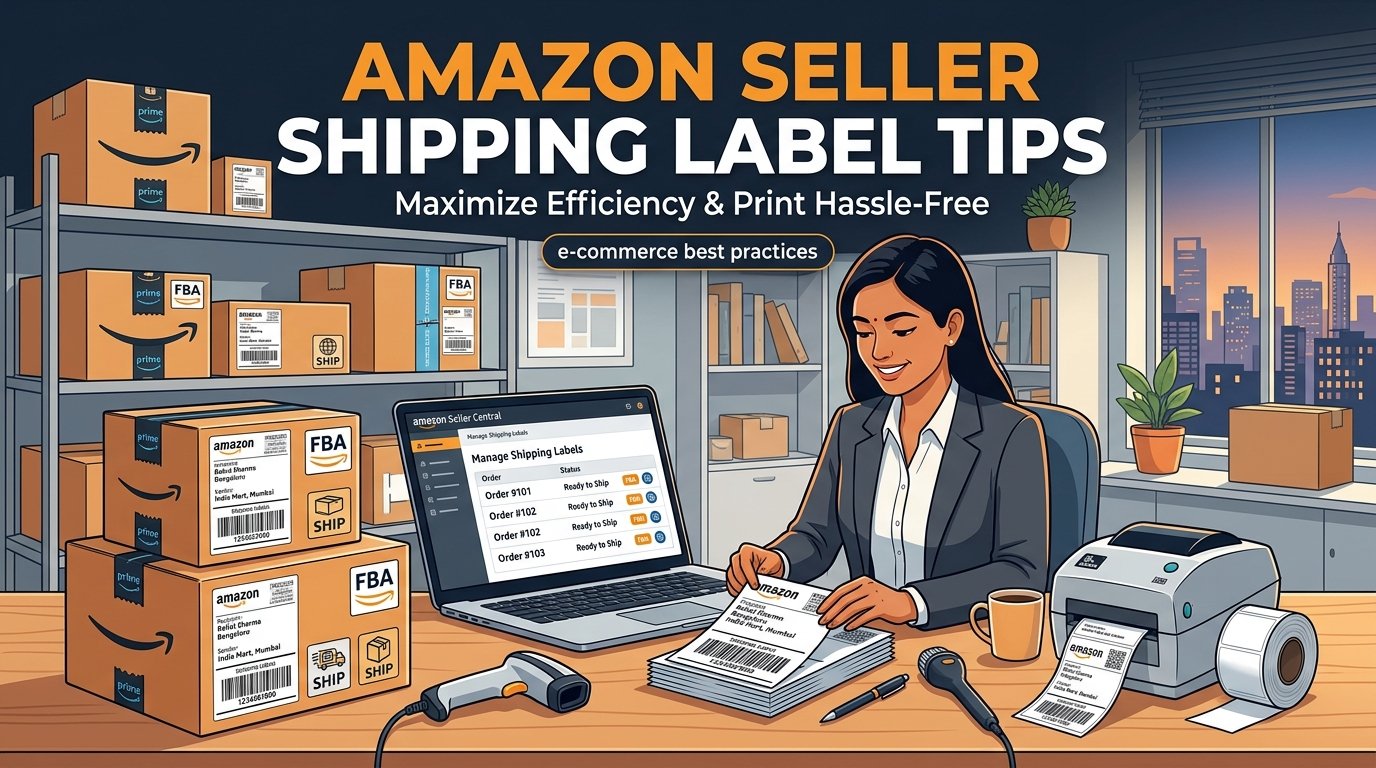
Selling on Amazon India via the Easy Ship program is a fantastic way to reach millions of customers without managing your own courier contracts. However, when it comes time to dispatch your orders, Amazon's default shipping label PDF format can be a massive headache for sellers trying to use thermal printers.
The Amazon Label Format Problem
By default, Amazon generates shipping labels designed for standard A4 desktop printers. The PDF page contains the actual shipping label taking up only a fraction of the page, surrounded by massive amounts of white space and sometimes a secondary packing slip.
If you send this A4 PDF directly to a 4x6 inch thermal printer, it will either print incredibly small (making the barcode unreadable) or it will print across multiple labels, wasting your thermal roll.
The Manual Workaround (And Why It Fails)
Many sellers try to solve this by opening the PDF in Adobe Acrobat, using the "Snapshot" tool to manually draw a box around the label, and then printing that selection. While this works for 5 orders, it becomes an absolute nightmare when you have 50 or 500 orders to process daily. It is slow, prone to human error, and completely unscalable.
The Automated Solution: Auto-Cropping
To print Amazon Easy Ship labels efficiently, you need a tool that automatically strips away the white space and resizes the core label data to fit exactly onto a 4x6 or 4x4 inch thermal canvas.
- Upload the Amazon PDF: Take the bulk label PDF downloaded from your Amazon Seller Central dashboard.
- Process through EasyOrderLabel: Upload the file to our platform. The engine uses advanced edge-detection to find the bounding box of the actual label content, ignoring the empty A4 margins.
- Download the Thermal-Ready PDF: You will receive a new PDF where every page is perfectly sized to 4x6 inches.
Crucial Printer Settings for Amazon Labels
Once you have your cropped PDF, ensure your printer driver is configured correctly to avoid barcode rejection by the Amazon pickup agent (ATS):
- Darkness/Density: Set the print density between 8 and 12. Amazon barcodes require high contrast. If it's too light, the scanner will fail.
- Dithering/Halftone: Set this to "None" or "Line Art". Do not use halftone or error diffusion, as this creates tiny dots that confuse barcode scanners.
- Scale: Always choose "Fit to Printable Area" in your PDF viewer's print dialog.
Conclusion
Stop wasting time manually snipping Amazon labels. By automating the cropping process, you ensure consistent, high-quality labels that scan perfectly every time, protecting your seller metrics and speeding up your daily dispatch routine.